


Visual Studio Code — commonly called VS Code — is one of the most widely used code editors among developers today. It has become a top choice for beginners and professionals alike because it combines simplicity with powerful features. This VS Code review for developers explains what makes it stand out, its advantages and drawbacks, and why it’s worth considering for your coding projects.
Whether you build websites, mobile apps, backend systems, or automation tools, VS Code provides tools that improve productivity and streamline the coding process.
What Is VS Code
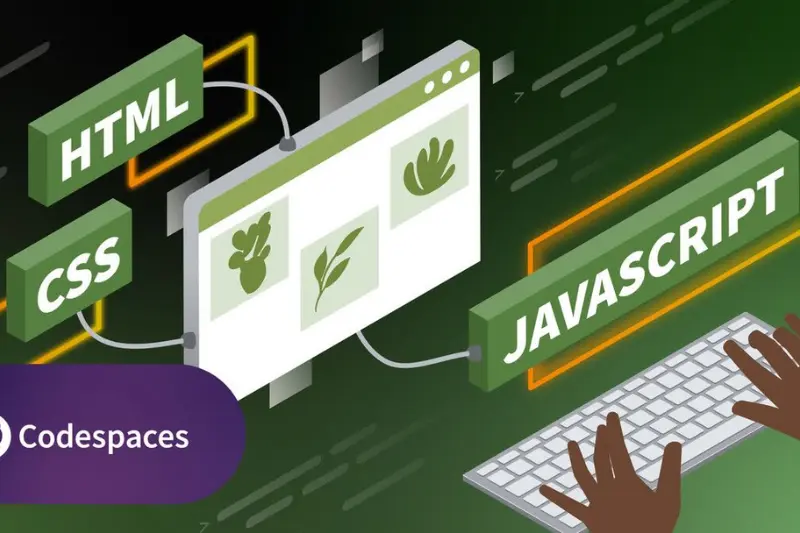
VS Code is a free, lightweight, and open‑source code editor developed by Microsoft. It supports many programming languages and offers tools that help developers write, test, and debug code efficiently.
This VS Code review for developers explores the editor’s core capabilities and explains why so many developers prefer it over traditional text editors.
Key Features
Intuitive and Customizable Interface
VS Code’s interface is clean and easy to navigate. Developers can customize the layout, themes, fonts, and panels to fit their workflow. This makes it ideal for both beginners who want simplicity and experienced developers who need advanced control.
Extensions and Marketplace
One of VS Code’s strongest advantages is its extension ecosystem. The Extensions Marketplace offers thousands of plugins that add functionality such as:
Syntax support for new languages
Linting and formatting tools
Version control enhancements
Theme changes and UI improvements
This makes VS Code adaptable for different development needs, which is a major highlight in any VS Code review for developers.
Built‑In Git Integration
VS Code includes built‑in support for Git. Developers can commit, push, pull, and manage branches directly from the editor without switching to a separate tool. This improves workflow and boosts productivity.
Intelligent Code Completion
VS Code provides intelligent code suggestions based on context. This feature, often known as IntelliSense, helps developers work faster and avoid common mistakes. It offers suggestions for variables, functions, and library features as you type.
Debugging Tools
VS Code’s debugging tools allow developers to set breakpoints, inspect variables, and step through code while it runs. This makes troubleshooting easier and is a key feature in this VS Code review for developers.
Integrated Terminal
The integrated terminal lets developers run commands without leaving the editor. Whether you need to run scripts, start servers, or use build tools, the terminal provides a seamless experience.
You may also like to read these posts:
How to Debug Code Step by Step for Beginners
Fix Syntax Errors in Programming Easily for Beginners
Troubleshooting Programming Mistakes for Beginners
Beginner Debugging Techniques Guide for Programmers
Pros of VS Code for Developers
1. Free and Open‑Source
VS Code is completely free, and developers can modify it because it’s open‑source. This makes it accessible to anyone who wants a professional code editor.
2. Cross‑Platform Support
VS Code works on Windows, macOS, and Linux. Developers can use the same editor on different systems without limitation.
3. Great for Multiple Languages
Whether you’re writing JavaScript, Python, C#, Go, or Rust, VS Code supports them all with extensions. This versatility is a big reason why developers love it.
4. Fast and Lightweight
Despite its powerful features, VS Code remains fast and does not consume too much system memory. It’s suitable for both high‑end machines and less powerful laptops.
5. Large Community and Support
Because so many developers use VS Code, there are abundant tutorials, plugins, and troubleshooting resources available online. Community support makes problem solving easier.
Cons and Limitations
1. Can Be Overwhelming at First
For complete beginners, the number of features and extensions may feel overwhelming. However, a basic setup works fine for simple coding tasks.
2. Requires Setup for Some Languages
While VS Code supports many languages, you may need to install specific extensions for full functionality. This can require a little setup time.
3. Not a Full IDE by Default
VS Code is a powerful editor but not a full integrated development environment (IDE) out of the box. Some developers prefer full IDEs for large enterprise projects.
Tips to Get the Most Out of VS Code
Install Essential Extensions
Some must‑have extensions include:
- Language support (e.g., Python, JavaScript)
- Linter tools for quality checks
- Live server extensions for web development
Adding extensions improves productivity and enhances capabilities.
Customize Your Workspace
Use themes, icons, and layout features to make VS Code comfortable for long coding sessions. A personalized workspace increases focus and efficiency.
Learn Keyboard Shortcuts
Keyboard shortcuts help speed up common tasks like saving files, searching, or running code. Learning shortcuts can dramatically improve workflow.
Use Source Control
Leverage Git integration to manage version history and collaborate with teams. It’s one of the features that truly sets VS Code apart in this VS Code review for developers.
VS Code vs Traditional IDEs
Traditional IDEs like IntelliJ IDEA or Eclipse offer full project templates, deep language support, and heavy built‑in tools. VS Code, on the other hand, is lightweight and flexible.
For many developers, the choice between an editor and an IDE comes down to project type, personal preference, and performance requirements.
Who Should Use VS Code
VS Code is suitable for:
Students learning programming
Frontend and backend developers
Web developers working with JavaScript, HTML, CSS
Python and data science developers
Developers who want a customizable, cross‑platform editor
This wide range of use makes VS Code one of the most beloved tools in the developer community.
Frequently Asked Questions
Is VS Code suitable for beginners?
Yes, its intuitive interface and helpful features make it beginner‑friendly.
Can VS Code be used for professional projects?
Yes, many large companies and developers use VS Code for serious production work.
Does VS Code support multiple languages?
Yes, with extensions it supports most major programming languages
Is VS Code free to use?
Yes, Visual Studio Code is completely free and open‑source.
How do I extend VS Code features?
You can install extensions from the built‑in marketplace to add support for new languages, tools, and utilities.
Conclusion
After reviewing its features, pros, and limitations, Visual Studio Code proves to be an excellent choice for developers of all levels. This VS Code review for developers highlights why it remains a favorite: it combines simplicity with powerful tools that enhance productivity and support growth.
Whether you’re building small scripts or large projects, VS Code’s flexibility and community support make it a top choice for modern development workflows.